Permissions: In order to create or edit Validator Definitions, you must have the Validator Configure privilege.
Validator is a conformance tool that provides a mechanism to validate imported data against a standard as well as a controlled terminology version. Validator provides a quick way to verify that all of the required variables for a standard exist, and that there are no additional variables that are not an optional part of the selected standard.
Access Validator
- Access the Validator module by clicking on Validator from the study level.
- By default, the Definitions tab opens to display any existing Validation definitions as tiles.
Create a Validator Definition
- Click the plus sign from the top right corner to create a new definition. A New Definition window opens with the Details tab highlighted.
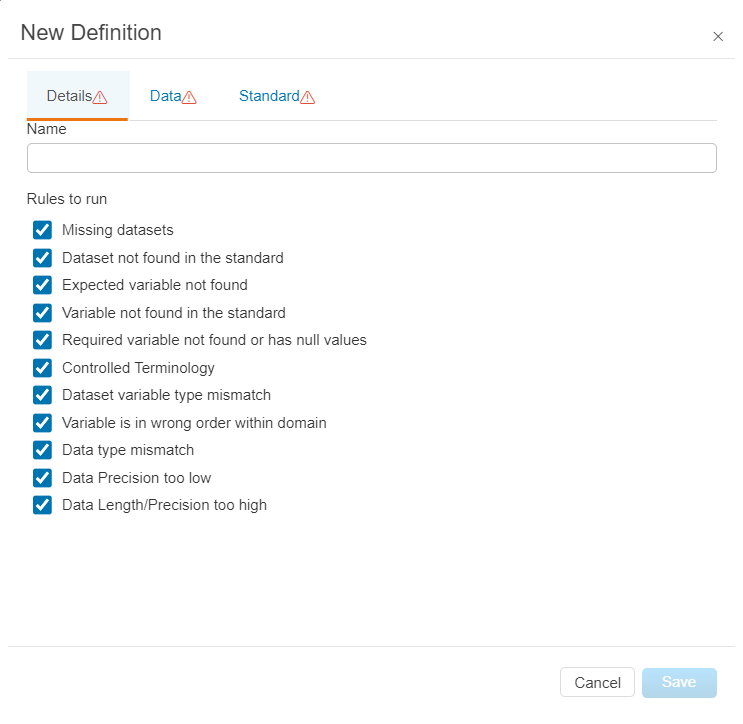
- In the Name field, enter a descriptive name for the definition.
- In the Rules to run area, click to select or clear checkboxes for the types of validation you want to perform on the data. Options include:
- Missing Datasets – Validate that the data store includes all datasets required by the selected standard.
- Dataset not found in the standard – Validate that only datasets that are required or optional exist.
- Expected variable not found – Validate that all required variables exist in datasets
- Variable not found in the standard – Validate that datasets only contain required and optional variables.
- Required variable not found or has null values – Validate that required variables exist and have values.
- Controlled terminology – Select this to validate values in fields with defined controlled terminology. If this is selected, you must select a specific Controlled Terminology version on the Standard Tab.
- Dataset variable type mismatch – Validate that all variable data types match the selected standard.
- Variable is in the wrong order within domain – Validate that the variables in a dataset are in the standard order.
-
Data Type Mismatch – Select this option to check that all values in a variable can be converted to the data type defined for the variable in the standard.
-
Data Precision Too low –Select this option to check that for float types, the number of significant digits in the data is not less than the number of significant digits defined in the standard.
- Data Length/Precision too high – Select this option to check that variable lengths in the data are not longer than specified in the Standard for that variable, and ensure that for float types that the number of significant digits is not higher than that defined in the Standard.
- Click the Data tab.
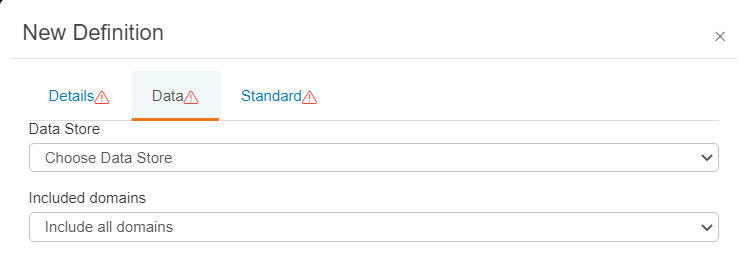
- In the Data Store field, click the drop-down to select the correct staging area or data mart that contains the datasets you wish to validate.
- In the Included Domains field, click the drop-down to select one of the following: Include all domains, Include the following domains, or Exclude the following domains.
If the Include or Exclude option is selected, the list of domains for the selected data store are shown. Select the checkbox for specific domain(s), or use the Domain Wildcards field to enter a pattern with wildcards, for example, LB_* (which matches LB_CHEM and LB_SAE) to specify domains in the select data store to include/exclude them from validation.
-
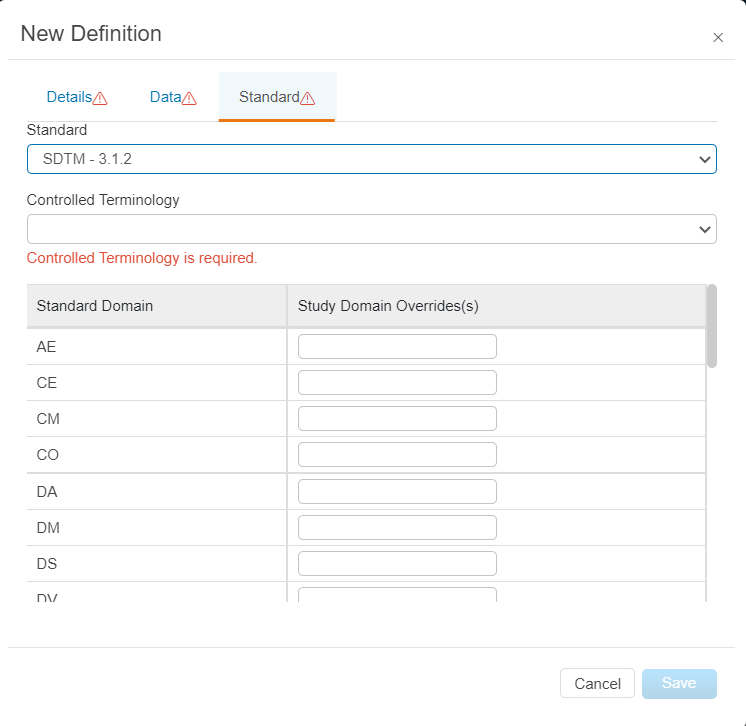
Click the Standard tab.
-
In the Standard field, click the drop-down to select from the list of available standards. These will correspond to the standards in the Global Standards module. Once a standard is selected, a list of the Standard Domains displays.
-
If necessary, in the Study Domain Overrides(s) enter the domain name that should be validated against the standard. This can be a comma-separated list, as well as the *(any characters) and ?(any single character) wildcards.
-
In the Controlled Terminology field, click the drop-down to select the correct version of controlled terminology. This field will only be available if the controlled terminology option is checked in the Rules to run area.
-
Click Save. The new definition displays in the table / tiles.
Tip: To support reusability and the scheduling of conformance validations, create validation definitions that can be run manually or scheduled to run at a later time.
Run a Validator Definition
- When viewing a Validator Definition tile, click the the Run Validator(play) icon to run the Validation Definition immediately.
- After the job completes, the results will be available from the Results tab.
Schedule a Validator Definition
- When viewing a Validator Definition tile, click the Schedule (calendar) icon to schedule the Validation Definition to run.
- The New Task window opens to the Task tab by default.
- Name your task and give it a description.
- Click the Schedule tab, and set the schedule and any schedule repeat settings.
- Click the Actions tab, and the validator and email actions are added by default.
- Adjust or add any actions as necessary.
- Click the Save button to create your Validator schedule.
Tip: Visit the Automated Tasks section for more details on how to schedule a validator task.
Edit a Validator Definition
- When viewing a Validator Definition tile, click the Edit Definition (pencil) icon to edit the Validator Definition.
- The Edit Definition window opens to the Details tab by default.
- Modify the details of the conformance rules to run and the data store the system will validate.
- Click the Save button to confirm your changes or Cancel to return without saving changes.
Delete a Validator Definition
- When viewing a Validator Definition tile, click the Delete (trash) icon to delete the Validation Definition.
Note: Previous results are still viewable.
View Validator Results
- Click the Results tab to view the results of a Validation job that has been run.
- The results for all previously run jobs display.
Each row in the results represents a violation of the rules specified in the Validator definition. The results include the following items:
- Type: The rule specified in the definition that is causing the error
- Message: A brief text message explaining the issue
- Domain: The domain that the error was found in
- Field: The field that does not match the validator rules
If there are many errors, you can use the search fields at the top of the results to find specific results.
View Previous Validator Results
On the left hand side of the Results tab, you can see a history of Validator Definitions that have been run to validate data. When you select one of these validation jobs, the related results displays in the results area to the right.
Export Validator Results
- When viewing the results tab, from the left click the job you want to Export.
- Click the Export button at the top right of the Results listing.
Delete Validator Results
- When viewing the results tab, from the left click the job you want to delete.
- Click the Delete (trashcan) button at the top right of the Results listing.